How to sync contacts from iPhone to Mac
The quickest way to sync contacts from iPhone to Mac is iCloud: sign in with the same Apple ID on both, turn on Contacts in iCloud on each device, and the Mac's Contacts app fills in within a few minutes. This guide covers those steps, what to check when contacts are not syncing, and how to move them without iCloud. It ends with the part a sync never carries: who each person is and what you last talked about, which is what Mars keeps.
How to sync contacts from iPhone to Mac with iCloud
iCloud keeps one copy of your contacts and puts it on every device signed in to the same Apple ID, so a contact you add on the iPhone appears on the Mac and the other way round. On the iPhone, open Settings, tap your name, then iCloud, open the full list of apps using iCloud and turn on Contacts; if it asks what to do with contacts already on the phone, choose Merge. On the Mac, open System Settings, click your name, then iCloud, and turn on Contacts in the same list (on macOS Monterey and earlier: System Preferences, Apple ID, iCloud). Open the Contacts app on the Mac and the cards arrive within a few minutes on Wi-Fi. For example, you add a client's number on your iPhone after a meeting; when you sit down at your MacBook the card is already there, ready for an email or a FaceTime call.
- The same Apple ID on the iPhone and the Mac
- Contacts turned on in iCloud on both devices, with Merge when asked
- Open the Contacts app on the Mac and wait a few minutes on Wi-Fi
iPhone contacts not syncing to Mac: five things to check
When iPhone contacts are not syncing to the Mac, the cause is usually one of five settings. First, both devices must use the same Apple ID: compare the name and email at the top of Settings and System Settings. Second, check where new contacts are saved: on the iPhone, Settings, Apps, Contacts, Default Account (Settings, Contacts on older iOS) must be iCloud, because cards saved "On My iPhone" or in a Gmail or work account never go to iCloud. Third, in the Mac's Contacts app open Settings, Accounts, choose iCloud and make sure the account is enabled, and that the sidebar is showing iCloud or All Contacts. Fourth, sign in to icloud.com and open Contacts: if a card is there but not on the Mac, the problem is the Mac; if it is missing, the iPhone never uploaded it. Fifth, turn Contacts off and back on in iCloud on the device that is behind, choosing Keep on My iPhone when asked, so nothing is deleted while it syncs again. For example, a card you saved from a business email lands in your Gmail account on the iPhone and never reaches the Mac; adding the same Google account under Internet Accounts on the Mac brings it across.
- Same Apple ID, and the iPhone's Default Account set to iCloud
- iCloud enabled in the Mac Contacts app, sidebar on All Contacts
- Check icloud.com to see which device is behind, then toggle Contacts on it

Contacts disappearing on iPhone: why they vanish and how to get them back
When contacts are disappearing on iPhone, they are rarely deleted one by one: usually every card stored in one account leaves at once. Check four causes. First, an account's Contacts switch: in Settings, Apps, Contacts, Accounts (Settings, Contacts, Accounts on older iOS), open each Gmail, Outlook or work account. Turning its Contacts off, signing out or removing the account takes every card stored there off the phone, and turning it back on brings them back from that account. Second, iCloud Contacts turned off with Delete from My iPhone: turn it back on in Settings, your name, iCloud, and the cards return from iCloud. Third, a card deleted on another device signed in to the same Apple ID, such as a Mac or an iPad, is deleted on the iPhone too. Fourth, the Contacts app may be showing a single list: tap Lists at the top left and choose All Contacts. If the cards are gone from iCloud as well, sign in to icloud.com/contacts on a computer, open the App Launcher, choose Data Recovery, then Restore Contacts, and restore an archive dated before they vanished. iCloud archives your current contacts first, so you can go back, and a contact deleted in the last day can take up to 24 hours to appear in an archive. For example, you remove an old work email account from your iPhone and two hundred clients vanish with it; you add the account again, or restore yesterday's iCloud archive. Nothing you know about those people is lost in Mars meanwhile: notes, past conversations and reminders live on each person's Mars page, not on the iPhone card, and Mars can open a prefilled card to put a lost contact back.
- An account switched off or removed takes its cards with it; switch it back on
- Lists, All Contacts shows cards hidden by a single list
- icloud.com Data Recovery restores an earlier contacts archive

How to transfer contacts from iPhone to Mac without iCloud
If you do not want your contacts in iCloud, there are three ways to move them. Finder: connect the iPhone to the Mac with a cable, select it in the Finder sidebar, open the Info tab, tick Sync contacts and click Apply; this only works while iCloud Contacts is off, because otherwise iCloud is already doing the job. AirDrop: open a contact on the iPhone, tap Share Contact, choose AirDrop and pick your Mac, and it opens as a card you add to Contacts; this suits a handful of people. vCard: export the cards as one .vcf file, for example from icloud.com or a contacts export app, and on the Mac choose File, Import in the Contacts app. For example, you are setting up a work Mac that is not signed in to your personal Apple ID: AirDrop the ten client cards you need instead of syncing your whole address book.
- Finder sync over a cable, only with iCloud Contacts off
- AirDrop a few cards with Share Contact
- One .vcf file imported with File, Import on the Mac
After the sync: keep the context with each contact
A sync moves names, numbers and emails. It does not move who introduced you, what you talked about or what you promised to send. Mars keeps that part. In the Mars iOS app you import the iPhone contacts that matter, searching and ticking them one by one; people already in Mars are marked, so nothing is duplicated, and nothing is read in the background. Each person then gets notes from your chats, meetings and screenshots, and reminders to follow up, and you see the same records in Mars on your Mac, in the Mac app or the browser. For example, you import the twelve investors you met at a demo day; a week later, on your Mac, you open one of them before a call and see where you met, what they asked about your traction and the deck you said you would send.
- Import only the iPhone contacts you tick, with people already in Mars marked
- Notes, past conversations and follow-up reminders on each person
- The same records on the iPhone and on the Mac
Put a Mars contact back into your iPhone, and iCloud carries it to the Mac
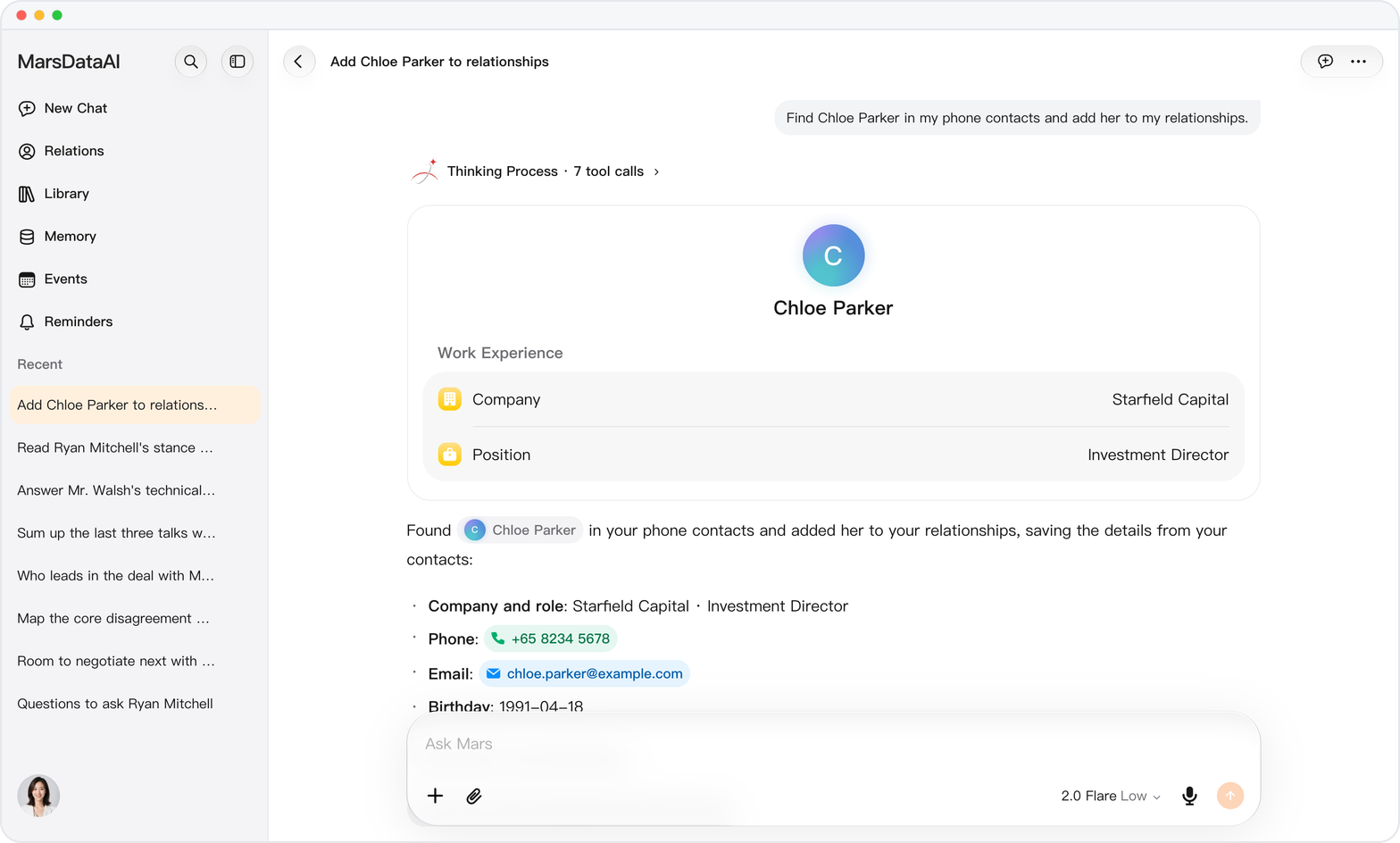
The other direction works too. Ask Mars in the iOS app to save someone to your phone contacts, and it opens the iPhone's own new-contact card filled in with the name, phone numbers, emails, company and title Mars holds, or the existing card if one already has that number. You tap Done yourself, and with iCloud Contacts on, the card reaches your Mac like any other. For example, you met someone at a dinner and told Mars her name, number and company; one tap puts her in your address book so her name shows when she calls, on the iPhone and on the Mac.
- A prefilled system contact card, never a silent write to your address book
- An existing card opens instead of a duplicate
- iCloud then syncs it to the Mac with the rest
Keep your contacts and their context together
- SyncTurn on Contacts in iCloud on the iPhone and the Mac with the same Apple ID.
- ImportIn the Mars iOS app, tick the contacts you actually work with.
- RememberMars keeps notes and follow-ups on each person, on the phone and on the Mac.
See the rest of Use cases in MarsDataAI Wiki.